Using Next.js to Build a Portfolio of SaaS Applications
Building a portfolio of Software as a Service (SaaS) applications is a fantastic way to showcase your skills as a developer, while also providing potential clients or employers insight into your capabilities. One of the most effective ways to structure the front end of these applications is by using Next.js, a React framework that offers features suited for building modern web applications. In this blog post, we're going to explore how to set up Next.js in a way that you can effectively display a portfolio of your SaaS applications.
Why Next.js?
Before diving into the setup, let's briefly talk about why you should consider using Next.js for your portfolio of SaaS applications:
Server-Side Rendering (SSR) and Static Site Generation (SSG): Next.js allows you to choose between SSR and SSG on a per-page basis. This is incredibly useful for blog posts, project pages, and other content that doesn't change often, improving performance and SEO.
API Routes: With Next.js, you can create API endpoints in your application. This means you can easily integrate the backend features of your SaaS applications right into your portfolio.
Image Optimization: Next.js offers built-in image optimization features, making it easy to manage the images for your applications, which can significantly enhance user experience.
SEO Friendly: With features like dynamic metadata and structured data, you can improve the visibility of your portfolio in search engines, helping potential clients find your work.
Developer Experience: Next.js is built on React, which is already a popular choice among developers. This means you can take advantage of the vast ecosystem of libraries and tools available to add even more functionality to your portfolio.
Setting Up Your Next.js Portfolio
Prerequisites
To begin, make sure you have the following SDKs installed on your computer:
- Node.js: Make sure you have Node.js v12.22.0 or newer installed.
- npm or Yarn: This is required for package management.
Step 1: Create a New Next.js Project
Begin by creating a new Next.js project. Open your terminal and run:
npx create-next-app my-portfolio
cd my-portfolio
This will set up a new directory called my-portfolio populated with the necessary files for a Next.js application.
Step 2: Organizing Your Project Structure
Next.js has a simple folders structure that you can utilize to organize your portfolio effectively. Here’s a suggested structure:
/my-portfolio
  /public        // Static assets (images, favicon, etc.)
  /components    // Reusable components (Header, Footer, ProjectCard, etc.)
  /pages         // Each page of your portfolio
    /index.js    // Home page
    /projects.js  // Page to showcase SaaS projects
  /styles        // Global styles and layout
Step 3: Create Reusable Components
Example: Project Card Component
Create a reusable card component to display each of your SaaS projects. In /components, create a file named ProjectCard.js.
// components/ProjectCard.js
import styles from './ProjectCard.module.css';

const ProjectCard = ({ title, description, link }) => {
  return (
    <div className={styles.card}>
      <h2>{title}</h2>
      <p>{description}</p>
      <a href={link} target="_blank" rel="noopener noreferrer">
        View Project
      </a>
    </div>
  );
};

export default ProjectCard;
Step 4: Add Project Data
For demonstration purposes, you can create a temporary JSON file to store data about your SaaS applications. Create a data.js file in the root of /my-portfolio.
// data.js
const projects = [
  {
    id: 1,
    title: 'Project A',
    description: 'A brief description of SaaS Project A',
    link: 'https://example.com/project-a',
  },
  {
    id: 2,
    title: 'Project B',
    description: 'A brief description of SaaS Project B',
    link: 'https://example.com/project-b',
  },
  // Add more projects as needed
];

export default projects;
Step 5: Populate the Projects Page
Now, let’s populate the /pages/projects.js page using the ProjectCard component we created.
// pages/projects.js
import ProjectCard from '../components/ProjectCard';
import projects from '../data';

const Projects = () => {
  return (
    <div>
      <h1>My SaaS Projects</h1>
      <div>
        {projects.map((project) => (
          <ProjectCard
            key={project.id}
            title={project.title}
            description={project.description}
            link={project.link}
          />
        ))}
      </div>
    </div>
  );
};

export default Projects;
Step 6: Linking to Your Projects
Finally, make your home page link to the projects page. Open the /pages/index.js file and modify it:
// pages/index.js
import Link from 'next/link';

const Home = () => {
  return (
    <div>
      <h1>Welcome to My SaaS Portfolio</h1>
      <p>Explore my projects below!</p>
      <Link href="/projects">
        <a>View Projects</a>
      </Link>
    </div>
  );
};

export default Home;
Step 7: Styling Your Portfolio
Adding Global Styles
Create a global CSS file in the /styles directory called globals.css and import it into _app.js in the pages directory.
/* styles/globals.css */
body {
  margin: 0;
  font-family: -apple-system, BlinkMacSystemFont, 'Segoe UI', Roboto, 'Helvetica Neue', Arial, sans-serif;
  line-height: 1.6;
}

/* Add your styles here */
Step 8: Adding Optimized Images
To further enhance your portfolio, consider adding images to represent each of your projects. You can add a thumbnail key to each project in your data.js file, and then use Next.js's Image component for optimized loading.
Here’s an example of how you might modify the ProjectCard component:
// components/ProjectCard.js
import Image from 'next/image';
import styles from './ProjectCard.module.css';

const ProjectCard = ({ title, description, link, thumbnail }) => {
  return (
    <div className={styles.card}>
      <Image src={thumbnail} alt={`Image for ${title}`} width={300} height={200} />
      <h2>{title}</h2>
      <p>{description}</p>
      <a href={link} target="_blank" rel="noopener noreferrer">
        View Project
      </a>
    </div>
  );
};

export default ProjectCard;
Conclusion
With these steps, you've set up a basic Next.js portfolio showcasing your SaaS applications. This structure provides a solid foundation but can also be extended and customized to suit your needs. You can add features like pagination, filtering, and even search functionality, depending on your past works.
Additionally, consider adding personal touches such as testimonials, project highlights, or links to your GitHub repositories for a holistic view of your work.
Next.js not only empowers you to create performant applications but also allows you to do so in a way that is manageable and scalable. Happy coding, and may your portfolio shine brightly in the digital realm!
Hope this helps you build an impressive SaaS portfolio using Next.js! If you have any questions or need further clarifications, feel free to reach out.
31SaaS
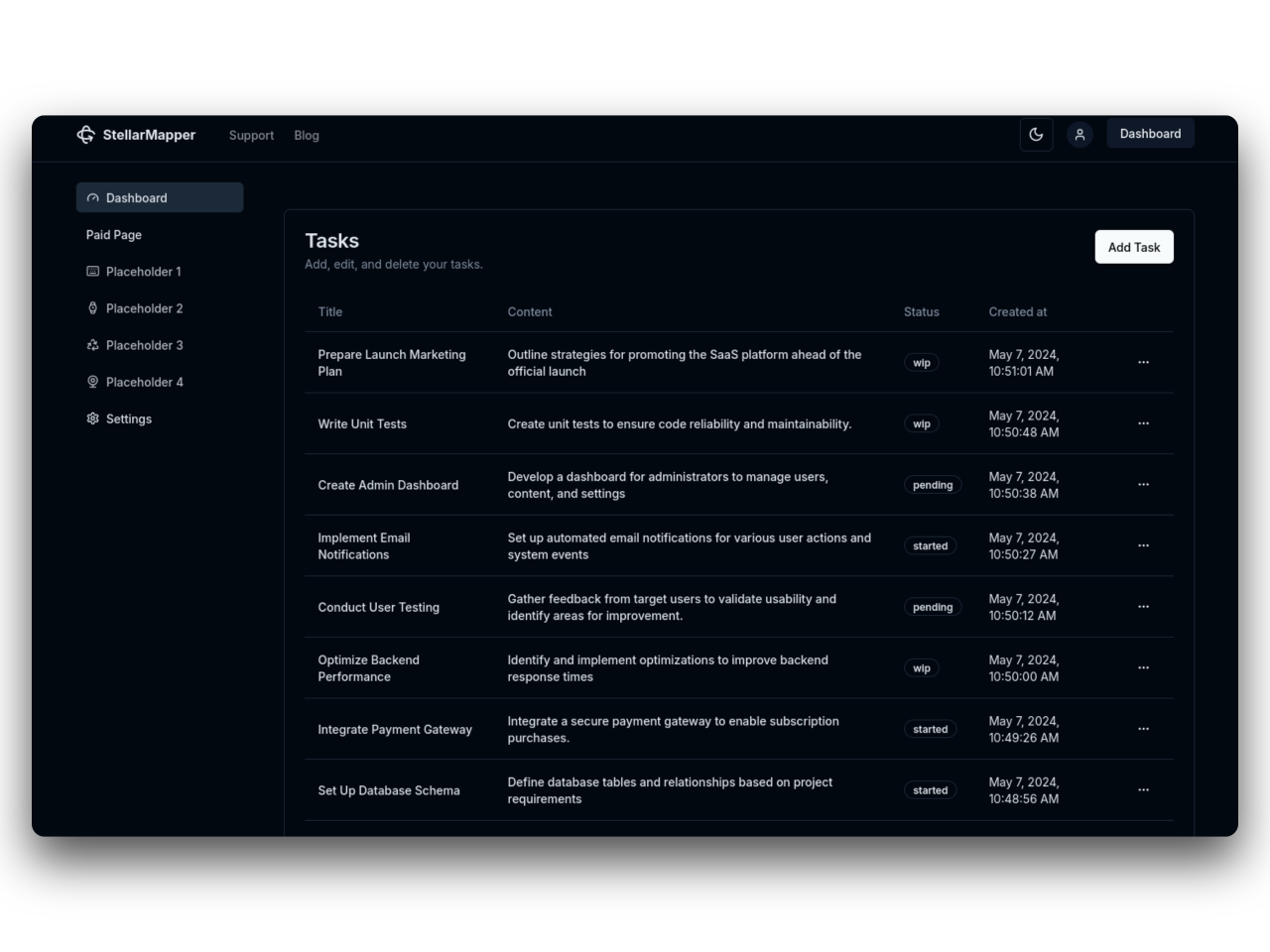
NextJs 14 boilerplate to build sleek and modern SaaS.
Bring your vision to life quickly and efficiently.