Setting Up Your Development Environment for Next.js
Next.js has revolutionized the way developers build web applications with its powerful features like server-side rendering (SSR), static site generation (SSG), and automatic code splitting. In this post, we will guide you step by step on how to set up your development environment for a Next.js project, ensuring you have all the necessary tools and configurations to kickstart your journey.
Table of Contents
- Prerequisites
- Installing Node.js
- Setting Up a Next.js Project
- Understanding the Project Structure
- Installing Necessary Packages
- Configuring ESLint and Prettier
- Setting Up a Version Control System
- Running the Development Server
- Conclusion
Prerequisites
Before you dive into setting up your Next.js environment, ensure that you have the following prerequisites installed on your machine:
- A modern web browser (Chrome, Firefox, etc.)
- Basic knowledge of JavaScript and React.
- Familiarity with command line interface (CLI).
Installing Node.js
Next.js is built on top of Node.js, so you’ll need to have it installed on your machine. Here’s how you can do it based on your operating system:
Windows
- Download the installer from the Node.js official website.
- Run the installer and follow the prompts.
- To verify your installation, open Command Prompt and type:
node -v
npm -v
macOS
You can install Node.js using Homebrew if you have it installed:
brew install nodeAlternatively, download the installer from the Node.js official website and follow the installation instructions.
Verify the installation:
node -v
npm -v
Linux
Use your package manager. For Debian-based systems (Ubuntu, etc.), run:
sudo apt update
sudo apt install nodejs npm
You can also download the installer from the Node.js official website if you prefer.
Verify the installation:
node -v
npm -v
Setting Up a Next.js Project
Now that you have Node.js installed, let’s create a new Next.js project.
Create a new directory for your project:
mkdir my-next-app
cd my-next-app
Initialize a new Next.js application: You can use the following command to create a new Next.js project:
npx create-next-app@latest .The
.at the end specifies that you want to create the project in the current directory.Choose TypeScript or JavaScript: During setup, you will have the option to choose between TypeScript and JavaScript. Choose based on your preference.
Install dependencies (if prompted):
npm install
Understanding the Project Structure
After creating your Next.js project, take a moment to understand the default folder structure:
- /pages: Contains the application’s routes (each file corresponds to a route).
- /public: For static assets like images and icons.
- /styles: Where your CSS files are located.
- /components: A great place to store reusable components (you may want to create this folder manually).
Installing Necessary Packages
Based on the features you want to implement, you might need additional packages. Here are some common libraries for Next.js projects:
React and React-DOM (if not installed):
npm install react react-domAxios for making HTTP requests:
npm install axiosStyled Components for styling:
npm install styled-components
You can install other libraries like Redux or Tailwind CSS based on your project needs.
Configuring ESLint and Prettier
To maintain clean code, setting up ESLint and Prettier is advisable:
Install ESLint:
npm install eslint --save-devThen initialize ESLint:
npx eslint --initInstall Prettier:
npm install --save-dev prettierCreate a Prettier configuration file by adding a
.prettierrcfile in the root of your project with basic settings. For instance:{ "semi": true, "singleQuote": true, "trailingComma": "es5" }Ignore certain files by adding a
.prettierignorefile:node_modules .nextIntegrate ESLint with Prettier to avoid errors:
npm install eslint-config-prettier --save-devUpdate your
.eslintrcfile to include the following:"extends": [ "eslint:recommended", "plugin:react/recommended", "prettier" ]
Setting Up a Version Control System
Using version control is crucial in any development project:
Initialize git in your project directory:
git initCreate a
.gitignorefile to exclude unnecessary files:node_modules .next .envMake your first commit:
git add .
git commit -m "Initial commit"
Running the Development Server
With everything set up, you can start your Next.js application:
npm run dev
Your application will run on http://localhost:3000. Open your browser and navigate to this address to see your Next.js app in action.
Conclusion
With your development environment set up, you are now ready to build amazing applications using Next.js. Remember to keep your dependencies updated, follow best practices for coding, and maintain a clean codebase with tools like ESLint and Prettier. Happy coding!
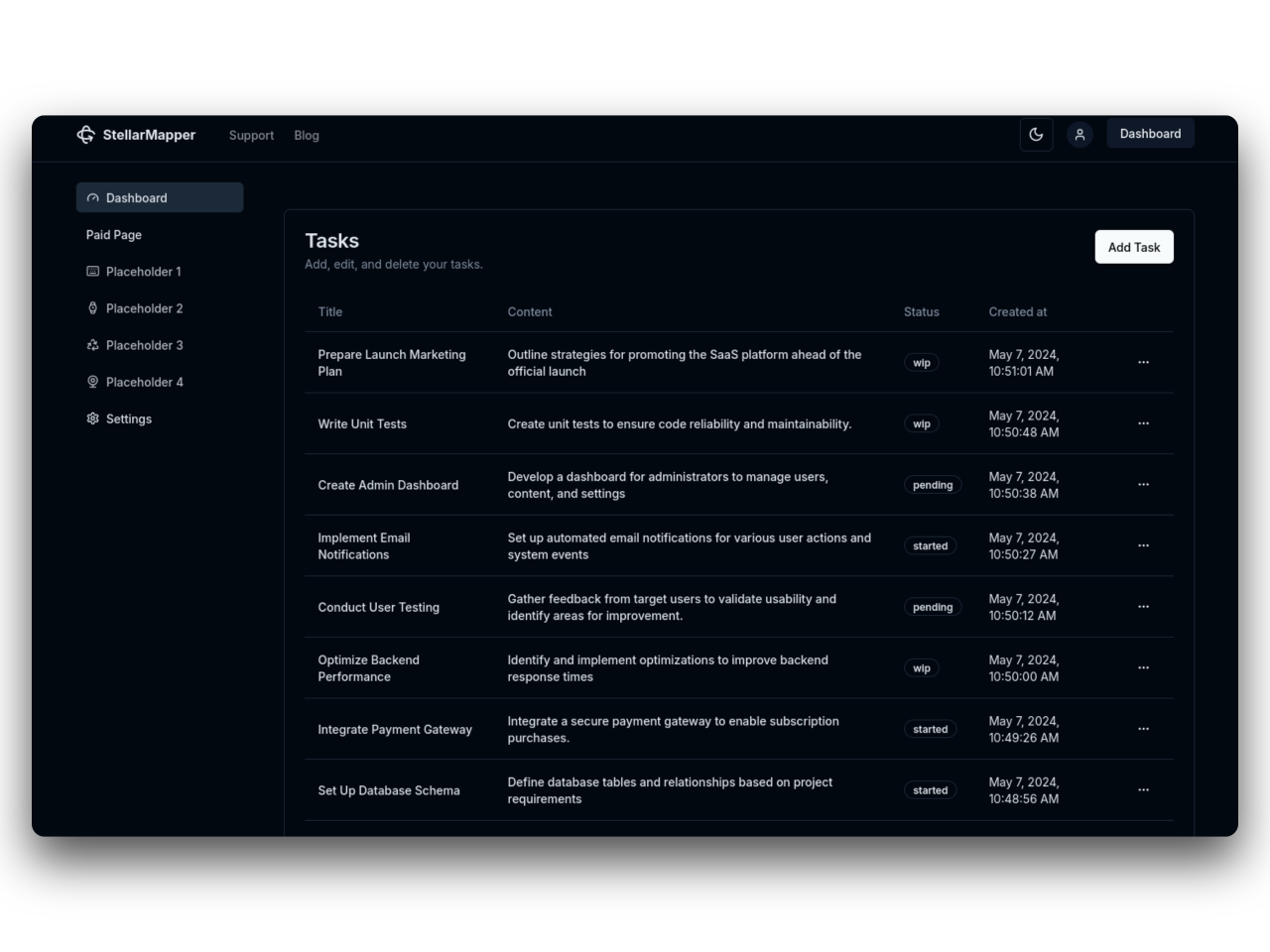
31SaaS
NextJs 14 boilerplate to build sleek and modern SaaS.
Bring your vision to life quickly and efficiently.