Next.js Styling Options for Aesthetic SaaS Interfaces
Creating beautiful and functional interfaces for Software as a Service (SaaS) applications is crucial to attracting and retaining users. With the rise of modern JavaScript frameworks, Next.js has emerged as a powerful option for building server-side rendered applications with React. In this blog post, we'll delve into the various styling options available in Next.js and how you can leverage them to craft stunning SaaS interfaces.
Why Next.js for SaaS?
Next.js simplifies the complexities of server-side rendering, static site generation, and API routes. This powerful framework not only provides excellent performance but also enhances the developer experience, allowing you to focus more on crafting a visually appealing and user-friendly interface. It's an ideal choice for SaaS applications that require speed, scalability, and SEO optimization.
Styling Options in Next.js
1. CSS Modules
CSS Modules are a popular choice in Next.js for scoping CSS to individual components. By using this technique, you can avoid the common pitfalls of global CSS and ensure that styles are applied only where they are needed.
Example:
Create a CSS Module file named
Component.module.css:.header { background-color: #1e90ff; color: white; padding: 1rem; text-align: center; } .content { font-size: 1.2em; }Import the CSS Module in your component:
import styles from './Component.module.css';

function Component() {
  return (
    <div>
      <header className={styles.header}>Welcome to My SaaS App</header>
      <div className={styles.content}>Your go-to solution for productivity!</div>
    </div>
  );
}

export default Component;
2. Styled Components
If you're looking for a more dynamic approach, styled-components is a fantastic library that allows you to write CSS in your JavaScript. This technique is well-suited for creating styled components that can adapt their styles based on props or themes.
Example:
Install the library:
npm install styled-componentsCreate a styled component:
import styled from 'styled-components';

const Header = styled.header`
  background-color: #1e90ff;
  color: white;
  padding: 1rem;
  text-align: center;
`;

const Content = styled.div`
  font-size: 1.2em;
`;

function Component() {
  return (
    <div>
      <Header>Welcome to My SaaS App</Header>
      <Content>Your go-to solution for productivity!</Content>
    </div>
  );
}

export default Component;
3. Emotion
Similar to styled-components, Emotion is a performant and flexible library for styling applications. It offers both styled component syntax and CSS-in-JS capabilities, allowing for significant versatility in design.
Example:
Install Emotion:
npm install @emotion/react @emotion/styledCreate an Emotion styled component:
/** @jsxImportSource @emotion/react */
import { css } from '@emotion/react';

const headerStyle = css`
  background-color: #1e90ff;
  color: white;
  padding: 1rem;
  text-align: center;
`;

const contentStyle = css`
  font-size: 1.2em;
`;

function Component() {
  return (
    <div>
      <header css={headerStyle}>Welcome to My SaaS App</header>
      <div css={contentStyle}>Your go-to solution for productivity!</div>
    </div>
  );
}

export default Component;
4. Tailwind CSS
Tailwind CSS is a utility-first CSS framework that allows you to create modern interfaces without leaving your HTML. When combined with Next.js, it can significantly speed up your styling process and provide a unique aesthetic that many users find appealing.
Example:
Install Tailwind CSS:
npm install tailwindcss postcss autoprefixerInitialize Tailwind CSS:
npx tailwindcss init -pAdd Tailwind to your CSS:
/* styles/globals.css */
@tailwind base;
@tailwind components;
@tailwind utilities;
Use utility classes in your components:
function Component() {
  return (
    <div className="p-4">
      <header className="bg-blue-500 text-white text-center p-4">Welcome to My SaaS App</header>
      <div className="text-lg">Your go-to solution for productivity!</div>
    </div>
  );
}

export default Component;
5. SASS/SCSS
SASS (Syntactically Awesome Style Sheets) is a powerful CSS preprocessor that allows you to write styles more efficiently. By using features like nesting and variables, you can maintain a cleaner codebase.
Example:
Install SASS:
npm install sassCreate a
.scssfile:/* styles/Home.module.scss */ $primary-color: #1e90ff; .header { background-color: $primary-color; color: white; padding: 1rem; text-align: center; } .content { font-size: 1.2em; }Import the SCSS file into your component:
import styles from './Home.module.scss';

function Component() {
  return (
    <div>
      <header className={styles.header}>Welcome to My SaaS App</header>
      <div className={styles.content}>Your go-to solution for productivity!</div>
    </div>
  );
}

export default Component;
Best Practices for Styling SaaS Interfaces
As you choose your styling method, consider the following best practices for creating a visually appealing SaaS interface:
Consistent Design Language: Maintain uniformity in your color palette, typography, and component styling to create a cohesive look.
Responsive Design: Ensure your application looks great on all devices. Utilize media queries or libraries like Tailwind CSS that offer responsive utilities.
Aesthetic Typography: Invest time in selecting fonts that match your brand's identity. Pair striking headings with legible body text for an engaging user experience.
White Space Usage: Effective use of white space can make your application feel more organized and easier to navigate.
Performance Optimization: Prioritize loading speed by keeping your CSS files small. Leverage tools like PurgeCSS to remove unused styles in a production build.
Conclusion
Next.js provides a versatile environment suitable for styling your SaaS application. With options ranging from CSS Modules and styled-components to Tailwind CSS and SASS, you can choose the approach that best suits your needs and workflow. Remember, an aesthetically pleasing interface is not just about looks; it plays a pivotal role in user experience, improving usability, engagement, and ultimately, retention.
As you embark on this journey, focus on creating a unified design language, ensuring responsiveness, and optimizing performance. With these elements combined, you can create a beautifully styled SaaS application that captures your audience's attention. Happy styling!
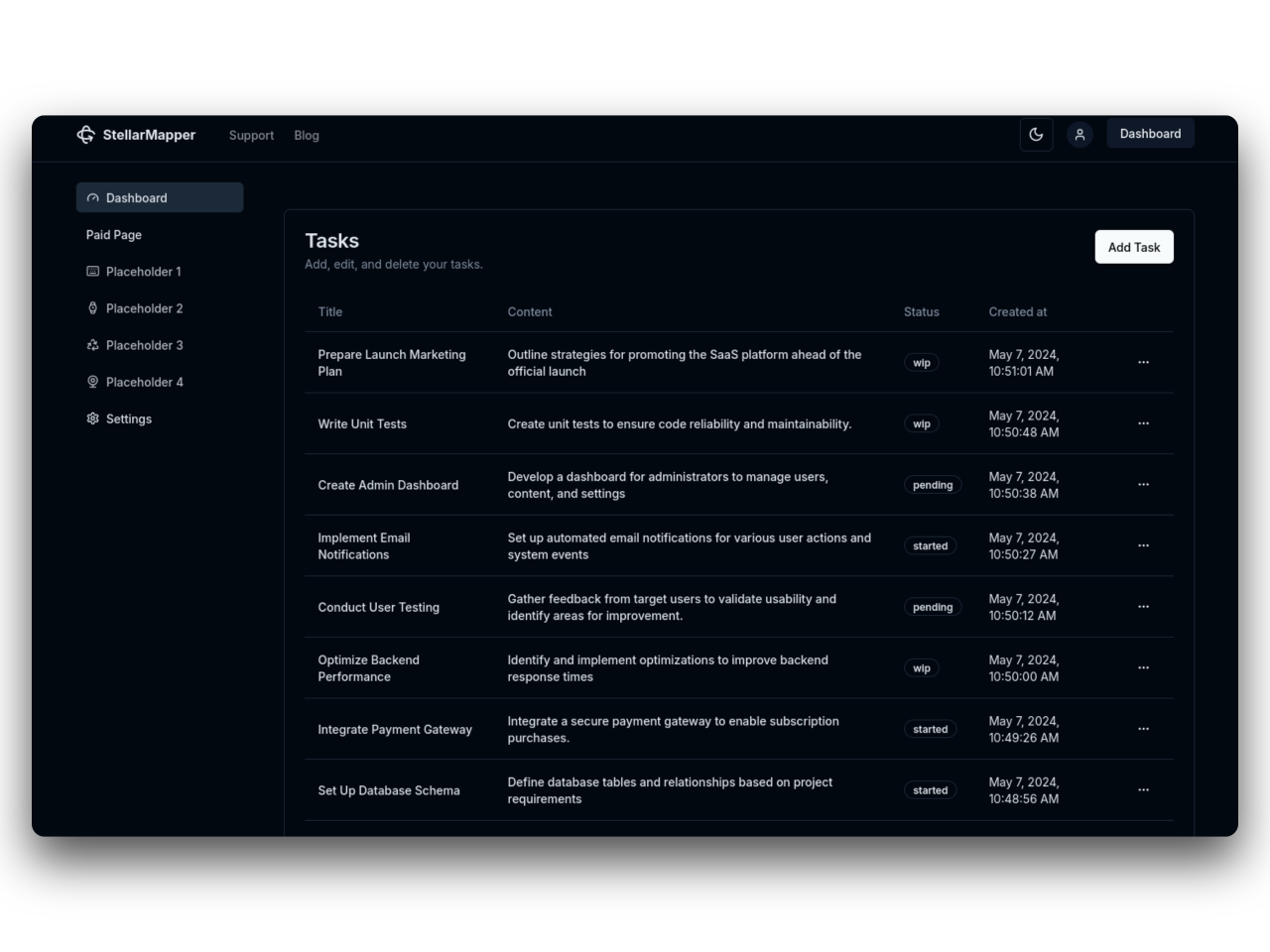
31SaaS
NextJs 14 boilerplate to build sleek and modern SaaS.
Bring your vision to life quickly and efficiently.