Leveraging Component Libraries in Next.js Projects
Next.js has gained immense popularity among developers in recent years, primarily due to its powerful features and seamless integration with React. One of the most significant advantages of building applications with Next.js is its flexibility, allowing you to structure your projects as you see fit. In this blog post, we'll explore how component libraries can enhance your Next.js projects, streamline your development process, and improve your overall user experience.
Table of Contents
- What is a Component Library?
- Benefits of Using Component Libraries in Next.js
- Getting Started: Installing a Component Library
- Creating Custom Components
- Best Practices for Using Component Libraries
- Conclusion
What is a Component Library?
A component library is a collection of pre-built UI components that you can use to speed up the development of your applications. These libraries typically include a variety of components, such as buttons, forms, modals, and navigation menus, which can be used independently or together to create an entire user interface. The primary benefit of a component library lies in its ability to provide reusable and consistent UI elements, fostering a cohesive look and feel throughout your application.
Benefits of Using Component Libraries in Next.js
Using a component library can significantly enhance your Next.js projects for several reasons:
1. Faster Development Time
By leveraging a component library, you can drastically reduce the time it takes to build your application. Instead of creating UI components from scratch, you can quickly assemble them using pre-built components. This allows you to focus on the core functionality of your app while maintaining a polished user interface.
2. Consistency in Design
Component libraries usually follow a well-defined design system, ensuring visual and functional consistency across your application. This reduces the chances of design inconsistencies that can occur when building components individually. A cohesive design improves user experience and helps establish brand identity.
3. Improved Code Maintainability
Using a component library enhances code reusability. When you need to make updates or add new features, you can do so with minimal disruption to your existing code. Component libraries often come with well-documented APIs, making it easier for developers to understand and integrate them into their projects.
4. Access to Advanced Features
Many component libraries offer advanced features and functionality out of the box. These may include accessibility features, responsive design, animations, and state management tools. By using these built-in features, you can focus more on building your application rather than reinventing the wheel.
5. Community Support
Popular component libraries often have large communities behind them. This means more resources, tutorials, and third-party plugins that you can leverage to enhance your applications. Engaging with a community can also help you find answers to any challenges you might face while developing your app.
Getting Started: Installing a Component Library
Integrating a component library into your Next.js project is a straightforward process. Here's a step-by-step guide to help you get started:
1. Create a Next.js Project
If you haven't created a Next.js project yet, you can do so using the following command:
npx create-next-app my-nextjs-project
cd my-nextjs-project
2. Choose a Component Library
There are numerous component libraries available, each offering different UI components and design styles. Some popular options include:
- Material-UI: A popular React UI framework that implements Material Design.
- Chakra UI: A simple, modular, and accessible component library for React applications.
- Ant Design: A design system with high-quality components for enterprise-level products.
- Tailwind UI: A component library built on top of Tailwind CSS, ideal for utility-first design.
3. Install the Component Library
For example, if you choose to use Chakra UI, you can install it with npm:
npm install @chakra-ui/react @emotion/react @emotion/styled framer-motion
4. Set Up the Library
Most component libraries require some initial setup. For Chakra UI, you’ll need to wrap your application with the ChakraProvider. Edit your _app.js file:
import { ChakraProvider } from '@chakra-ui/react';

function MyApp({ Component, pageProps }) {
  return (
    <ChakraProvider>
      <Component {...pageProps} />
    </ChakraProvider>
  );
}

export default MyApp;
5. Start Building
Now that the library is integrated, you can start leveraging its components in your application. For example, you can create a simple button using Chakra UI:
import { Button } from '@chakra-ui/react';

const HomePage = () => {
  return (
    <div>
      <h1>Welcome to My Next.js Project!</h1>
      <Button colorScheme="teal">Click Me</Button>
    </div>
  );
};

export default HomePage;
Creating Custom Components
While component libraries provide a plethora of ready-to-use components, there may be instances where you need to customize or create your own components. Here's how you can go about doing that:
1. Build Upon Existing Components
One of the strengths of using a component library is that you can build custom components on top of the existing ones. For example, you can create a custom input component that inherits styles from a library's basic input:
import { Input } from '@chakra-ui/react';

const CustomInput = ({ label, ...props }) => {
  return (
    <div>
      <label>{label}</label>
      <Input {...props} />
    </div>
  );
};

export default CustomInput;
2. Style Custom Components
If you want to apply unique styles to your custom components, most libraries allow you to override default styles or use CSS-in-JS solutions. For instance, you can use Emotion with Chakra UI:
import { Box } from '@chakra-ui/react';

const CustomBox = () => {
  return (
    <Box
      bg="teal.500"
      color="white"
      p={4}
      borderRadius="md"
      boxShadow="lg"
    >
      This is a custom styled box!
    </Box>
  );
};
Best Practices for Using Component Libraries
To make the most of component libraries in your Next.js projects, consider the following best practices:
1. Choose the Right Library
Spend time evaluating different component libraries to find the one that best fits your project requirements and design goals. Look for flexibility, documentation, community support, and ease of integration.
2. Use Components Wisely
While it's tempting to use many components from the library, remember to keep your UI clean and functional. Only use components that add value to your application and avoid unnecessary complexity.
3. Maintain a Consistent Design
If you're using a component library, ensure that your custom components align with the design system it promotes. Consistency will enhance user experience and provide better accessibility.
4. Stay Updated
Keep your component libraries up to date with the latest releases. This will ensure that you have access to the latest features, bug fixes, and security updates.
5. Read the Documentation
Take the time to go through the documentation provided by the component library. This will make it easier to integrate components effectively and leverage advanced features.
Conclusion
Leveraging component libraries in your Next.js projects is a great way to enhance development efficiency, maintain consistency in design, and provide a superior user experience. By choosing the right library, utilizing pre-built components, and creating custom elements when necessary, you can build powerful applications that stand out in today’s competitive landscape.
So go ahead, explore different component libraries, and start integrating them into your Next.js projects to take your development process to the next level!
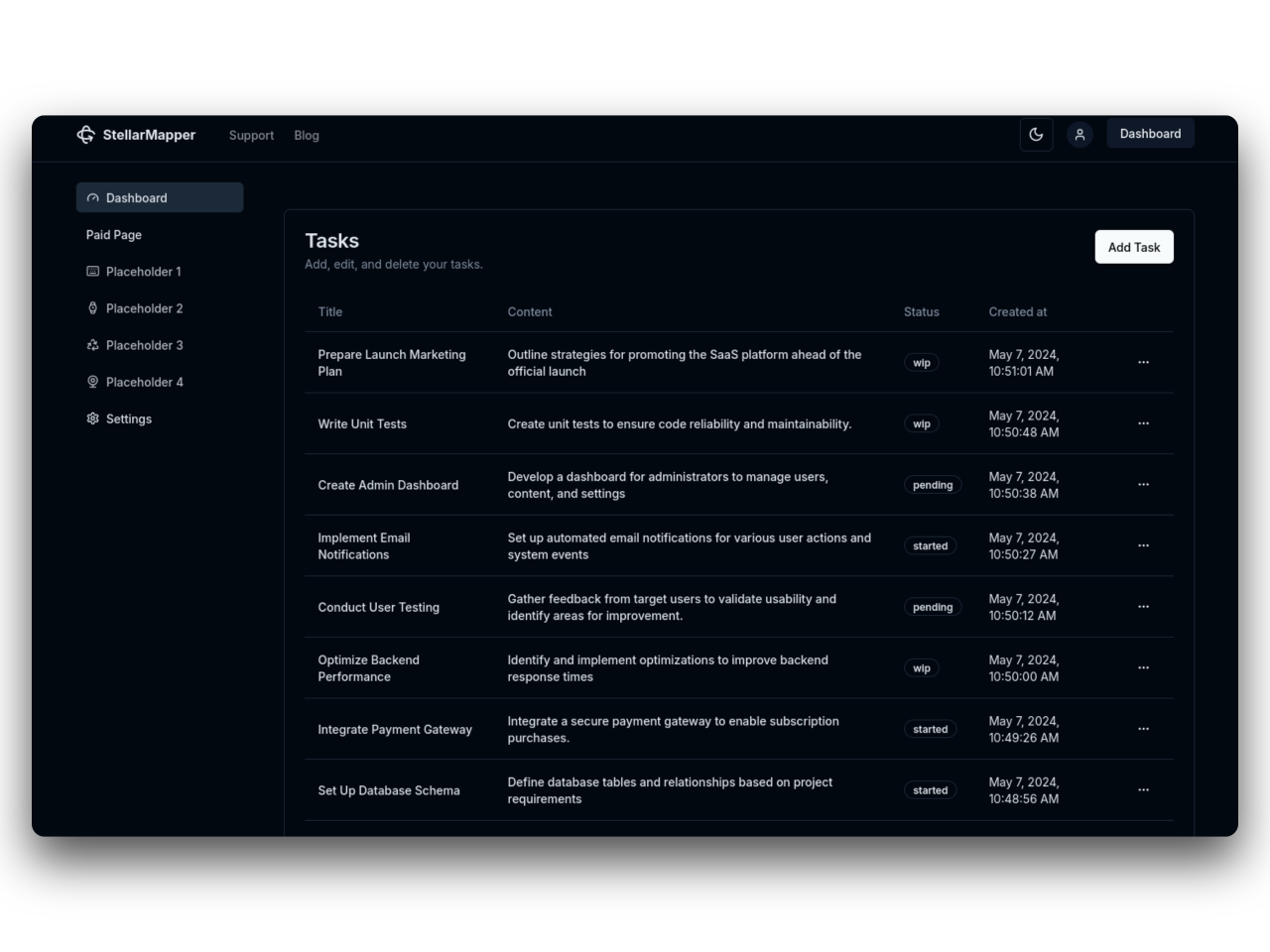
31SaaS
NextJs 14 boilerplate to build sleek and modern SaaS.
Bring your vision to life quickly and efficiently.