Designing Responsive Layouts for Next.js Applications
With the ever-increasing variety of devices and screen sizes, designing responsive layouts has become a fundamental skill for web developers. Next.js, the React framework for production, offers robust tools and features that can help developers create seamless, responsive web applications. In this blog post, we will explore how to design responsive layouts using Next.js, drawing upon its built-in capabilities, CSS utilities, and modern CSS approaches.
Understanding Responsive Design
Responsive design ensures that applications look and function well across diverse devices, screen sizes, and orientations. The main principles of responsive design include:
- Fluid Grids: Using percentages instead of fixed sizes for layouts and elements allows content to resize relative to the viewport.
- Flexible Images: Images should scale well within their containers using techniques such as CSS max-width.
- Media Queries: CSS media queries allow the application of different styles depending on device characteristics, such as width, height, or resolution.
- Mobile-First Approach: Designing for smaller screens first and progressively enhancing for larger devices is increasingly recommended.
The Power of Next.js for Responsive Design
Next.js brings a set of features that can enhance the efficiency of responsive design:
- Static and Server-Side Rendering: Next.js can render pages on the server or at build time, ensuring that responsive layouts are delivered optimally to users.
- Image Optimization: Next.js offers an Image component that automatically optimizes images based on display size, improving performance and responsiveness.
- File-Based Routing: The intuitive routing mechanism allows for the quick setup of responsive pages without extensive configuration.
Setting Up a Next.js Project
Before diving into building responsive layouts, let’s set up a new Next.js project. To get started, execute the following commands in your terminal:
npx create-next-app@latest my-next-app
cd my-next-app
npm run dev
This will create a new Next.js application where you can begin designing the responsive layout.
Responsive Layout with CSS Flexbox and Grid
Next.js allows you to integrate CSS frameworks or use native CSS flexbox and grid functionalities. Here are some guidelines to implement responsive layouts:
Using CSS Flexbox
Flexbox is instrumental in creating one-dimensional layouts. Here's how you can use Flexbox in your Next.js application.
- Create a Layout Component:
// components/Layout.js
const Layout = ({ children }) => {
  return (
    <div className="flex-container">
      <header>My Header</header>
      <main className="flex-content">{children}</main>
      <footer>My Footer</footer>

      <style jsx>{`
        .flex-container {
          display: flex;
          flex-direction: column;
        }

        .flex-content {
          flex: 1;
          display: flex;
          flex-wrap: wrap;
          justify-content: space-between;
        }

        header, footer {
          padding: 1rem;
          background: #333;
          color: #fff;
        }
      `}</style>
    </div>
  );
};

export default Layout;
This layout component allows you to organize your application structure with a header, main content area, and footer.
- Flexible Cards:
Suppose you want to display a set of articles as cards. You can use Flexbox to create a responsive grid of cards.
// components/Card.js
const Card = ({ title, description }) => {
  return (
    <div className="card">
      <h2>{title}</h2>
      <p>{description}</p>

      <style jsx>{`
        .card {
          flex: 1 1 calc(33% - 20px);
          margin: 10px;
          padding: 20px;
          background: #f7f7f7;
          border: 1px solid #ddd;
          border-radius: 8px;
          transition: transform 0.3s;
        }

        .card:hover {
          transform: scale(1.05);
        }

        @media (max-width: 768px) {
          .card {
            flex: 1 1 calc(50% - 20px);
          }
        }

        @media (max-width: 480px) {
          .card {
            flex: 1 1 100%;
          }
        }
      `}</style>
    </div>
  );
};

export default Card;
In this example, the card layout is responsive, adjusting to three columns on desktop, two on tablets, and one on mobile.
Using CSS Grid
CSS Grid is perfect for two-dimensional layouts. Here's how you can set up a responsive Grid layout.
// components/GridLayout.js
const GridLayout = ({ items }) => {
  return (
    <div className="grid-container">
      {items.map((item) => (
        <div className="grid-item" key={item.id}>
          {item.content}
        </div>
      ))}

      <style jsx>{`
        .grid-container {
          display: grid;
          grid-template-columns: repeat(auto-fill, minmax(240px, 1fr));
          gap: 16px;
        }

        .grid-item {
          padding: 20px;
          background: #eee;
          text-align: center;
        }
      `}</style>
    </div>
  );
};

export default GridLayout;
This Grid layout adjusts the number of items per row based on the available width, ensuring a responsive design.
Image Optimization with Next.js
Next.js provides an optimized image component, allowing for easy handling of images in a responsive manner.
import Image from 'next/image';

// Usage in a component
const ProfileCard = ({ imageUrl, name }) => {
  return (
    <div className="profile-card">
      <Image
        src={imageUrl}
        alt={`Picture of ${name}`}
        width={240}
        height={240}
        layout="responsive"
      />
      <h3>{name}</h3>

      <style jsx>{`
        .profile-card {
          padding: 20px;
          border: 1px solid #ddd;
          border-radius: 8px;
          text-align: center;
        }
      `}</style>
    </div>
  );
};
With the layout="responsive" property, Next.js manages the image size relative to the viewport, ensuring optimal loading and display.
Testing and Previewing Responsiveness
In real-world scenarios, you'll want to test your layouts across various devices. Here are some tips:
Browser Developer Tools: Use the responsive design mode in Chrome or Firefox to preview how your layouts behave on different devices.
Emulation: Emulate devices and network conditions to understand performance and UX.
Physical Devices: Whenever possible, test on actual devices, as emulators may not fully capture real-world performance.
Conclusion
Designing responsive layouts in Next.js involves a blend of CSS techniques, Next.js features, and best practices in responsive design. With CSS Flexbox and Grid, along with Next.js’s built-in optimizations, developers can create sleek, performance-oriented, responsive web applications that cater to a broad audience.
As web technologies progress, staying updated with the latest practices and methods is crucial. Remember that responsive design is not just about making things ‘fit’ on different screens; it's about creating adaptive experiences that feel natural, engaging, and pleasing to all users regardless of their device.
Try out the strategies outlined in this post, and unleash the full potential of your Next.js applications through responsive design! Happy coding!
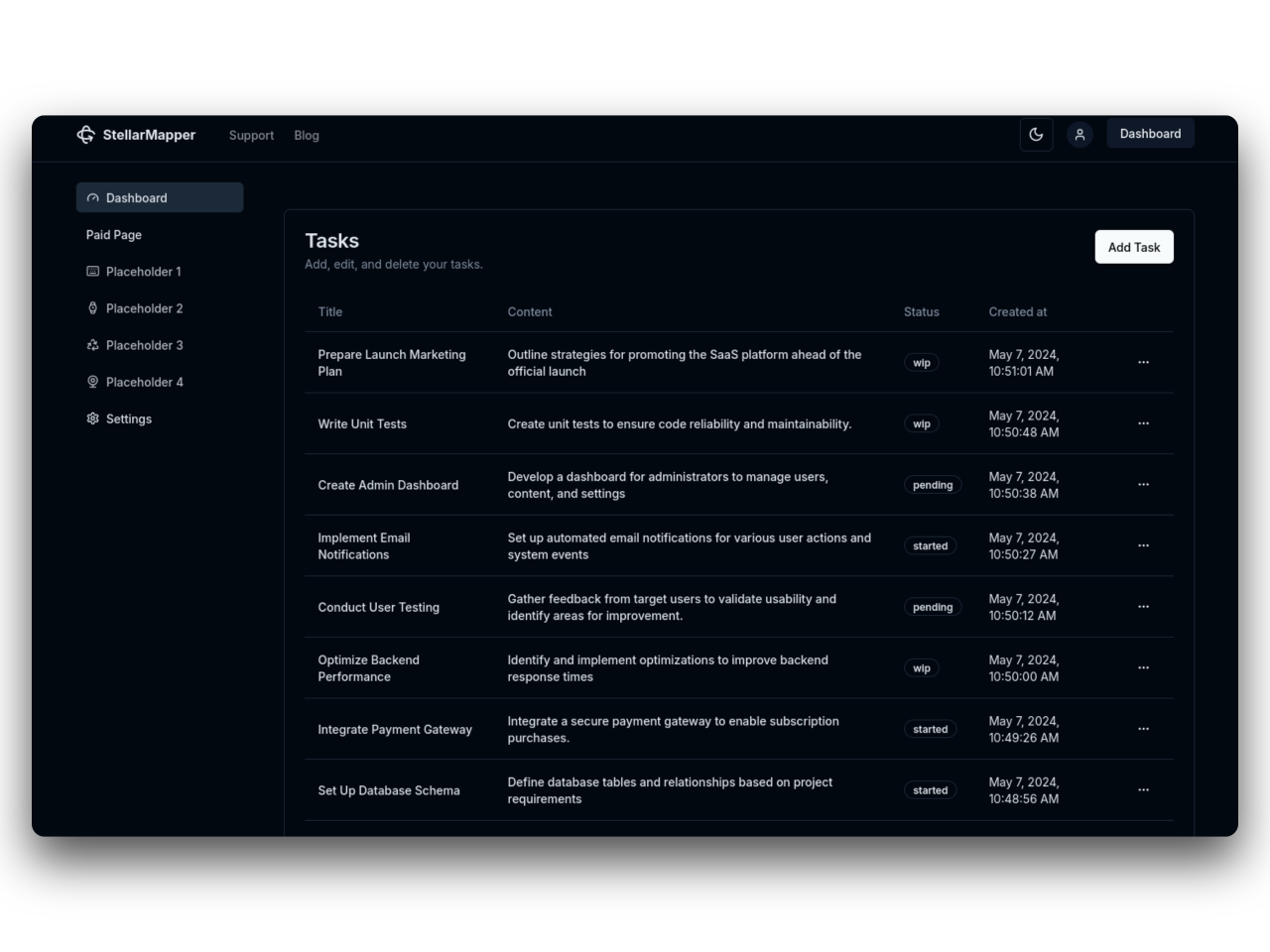
31SaaS
NextJs 14 boilerplate to build sleek and modern SaaS.
Bring your vision to life quickly and efficiently.